Every inspection, from the first stop to the final shortlist, in one place.
TIA (The Inspection App) brings the inspection-to-decision stage together for operators, agents,
landlords and tenants. Plan the run, capture feedback on site, compare the options and record the next step.
Plan
Inspect
Score
Compare
Decide
One run, start to finish.
01
Plan the run
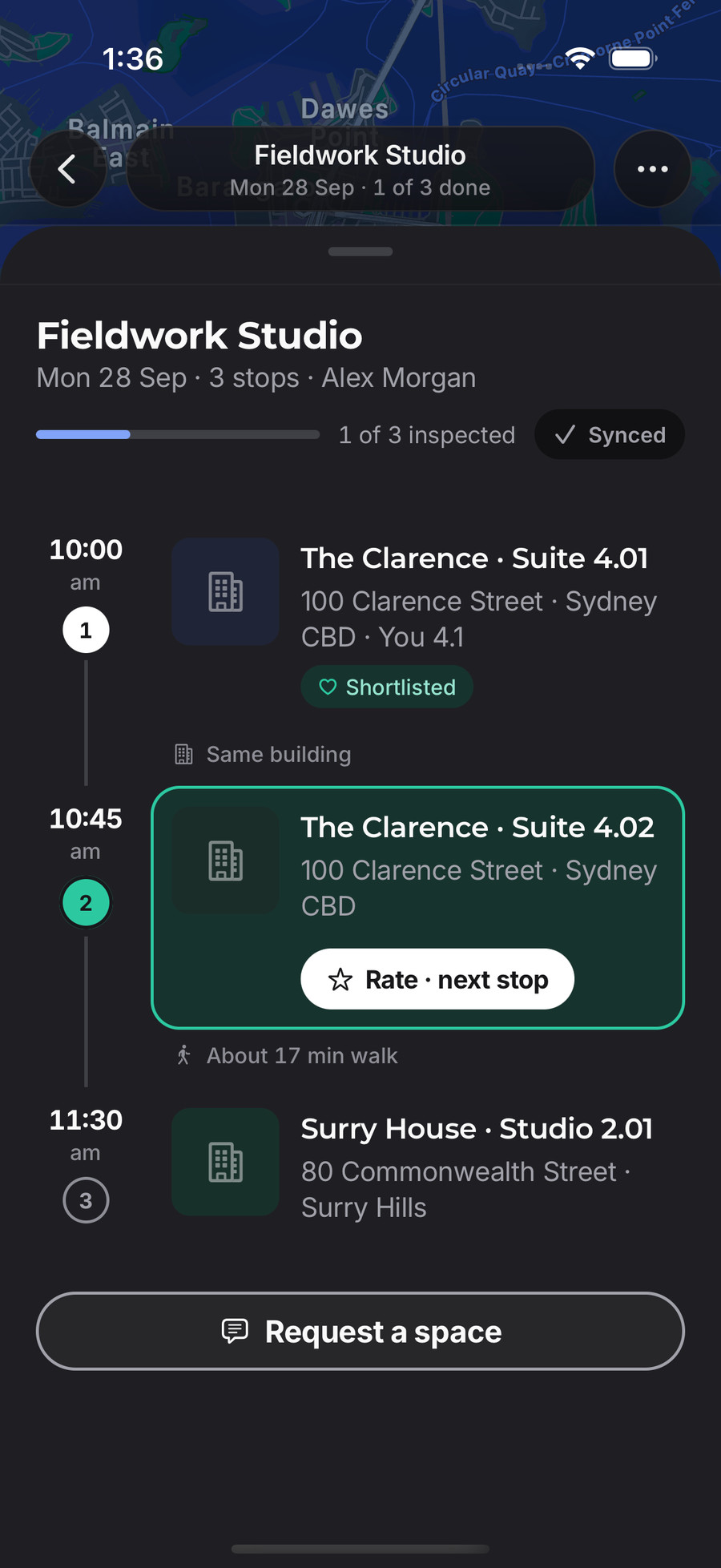
Choose available spaces from one building or several, set the visiting order and times, and
name the tenant.
02
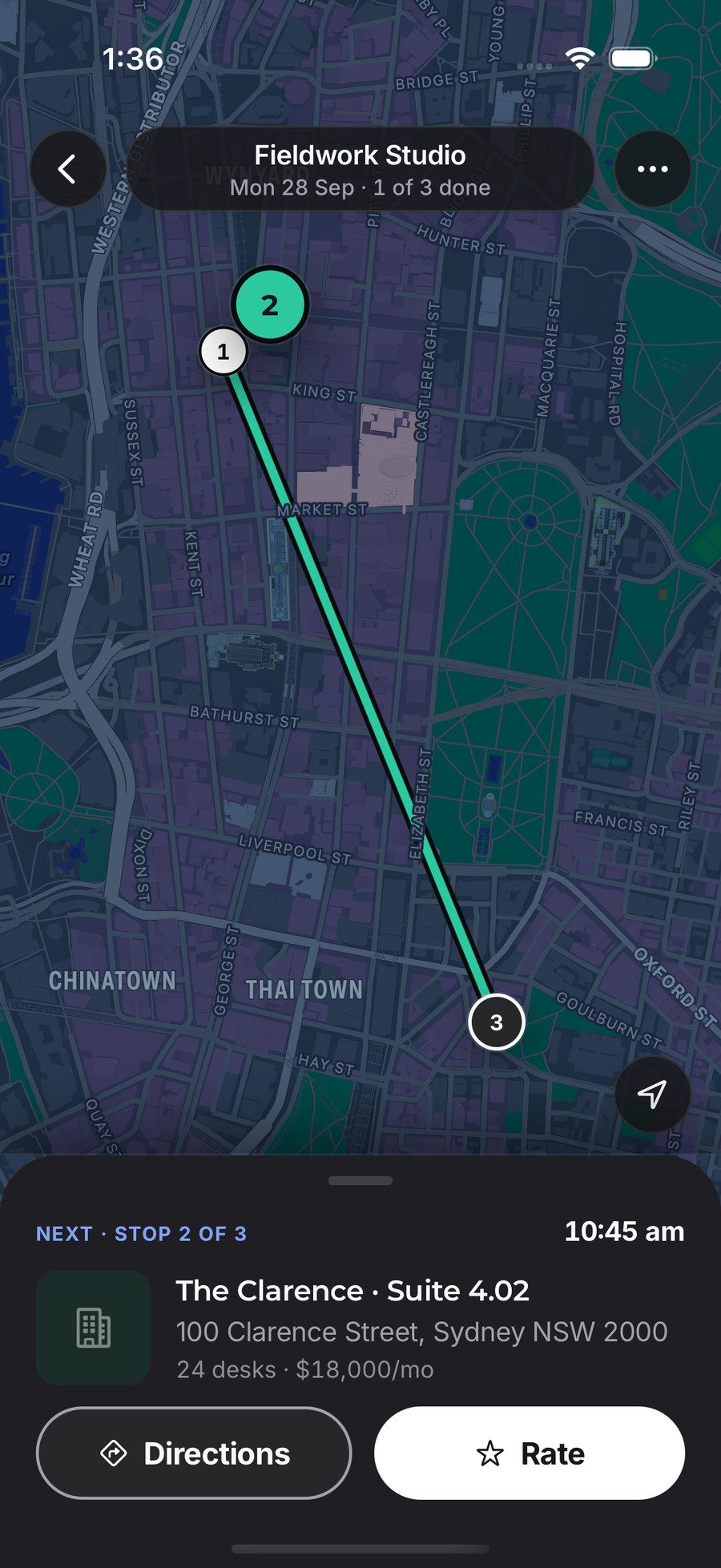
Follow it on the day
See the whole run on a map, get directions to the next stop and check in when you arrive.
03
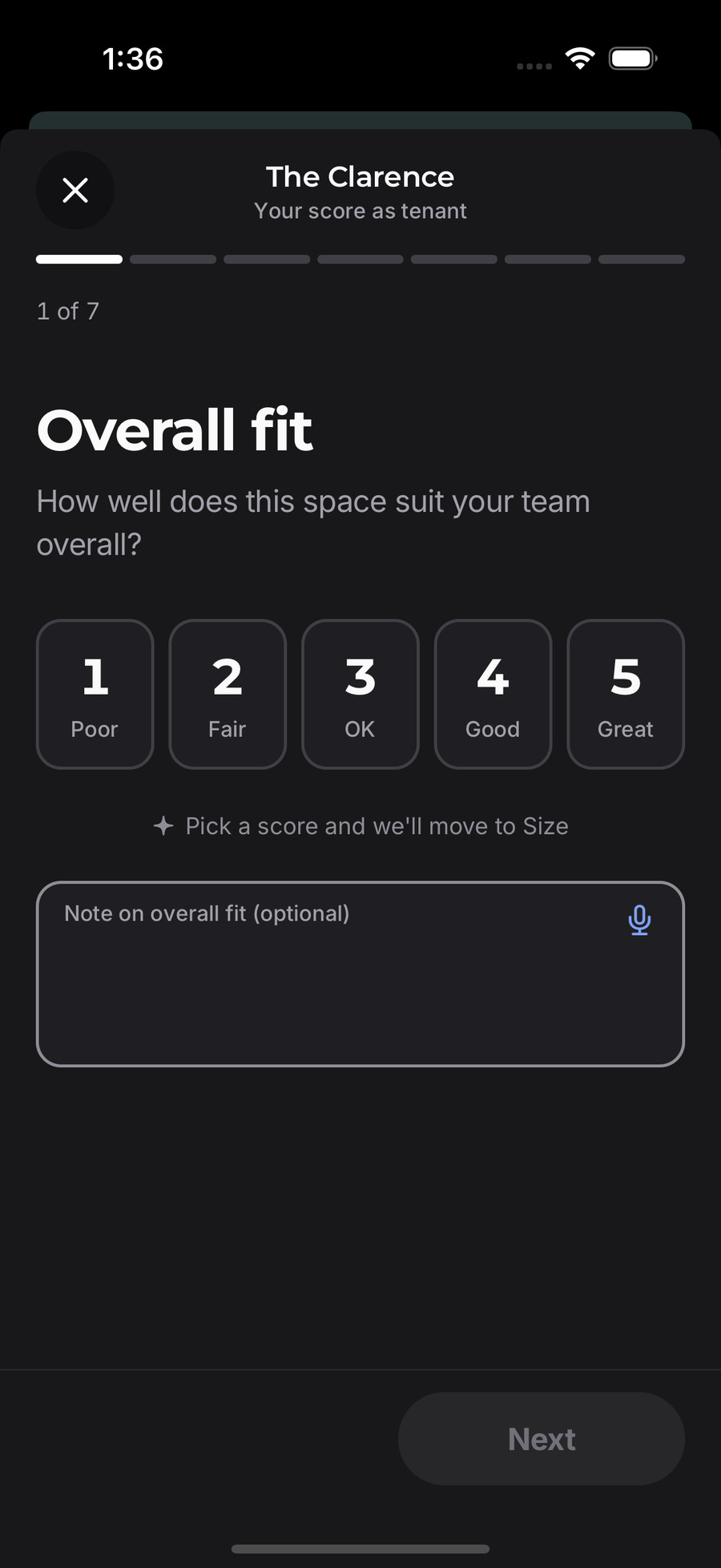
Score what matters
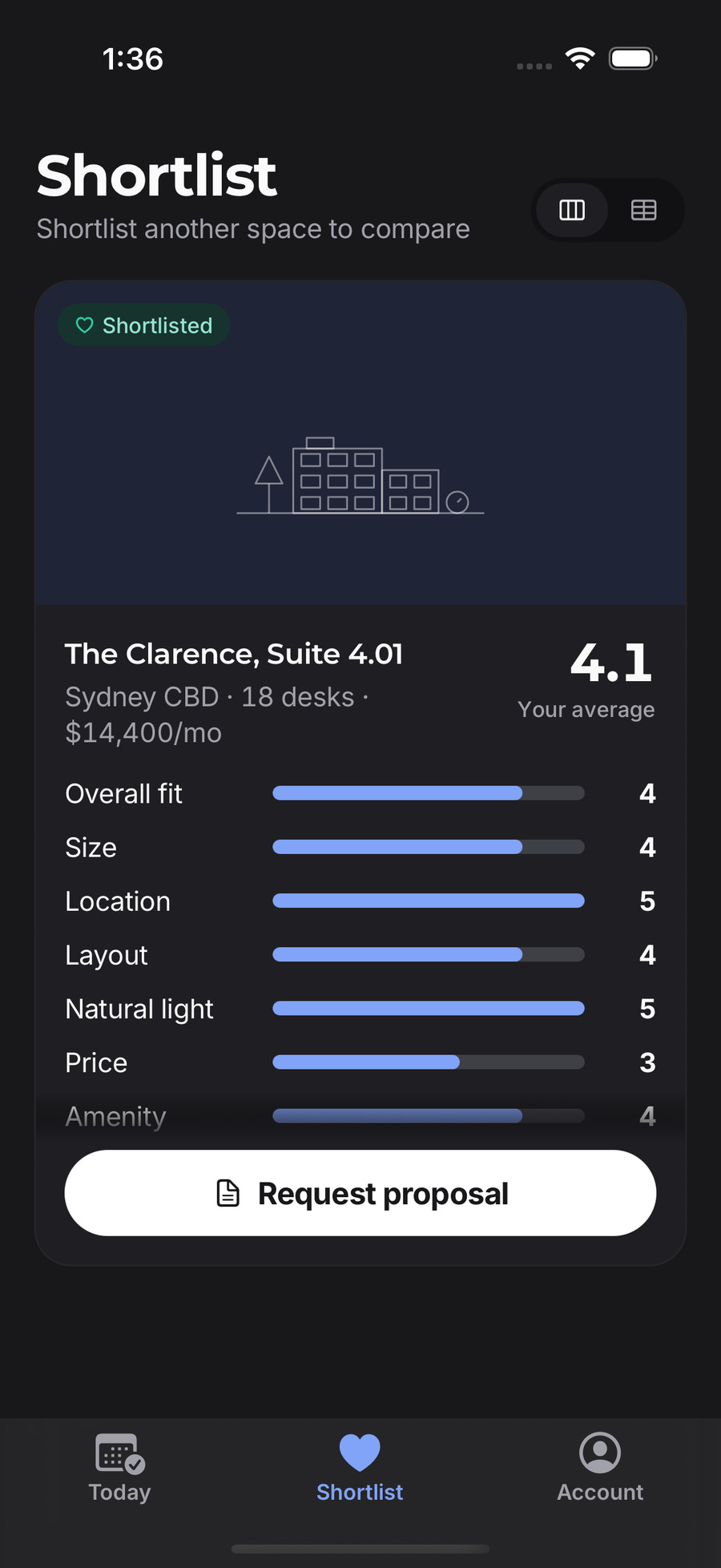
Rate each space from 1 to 5 on overall fit, size, location, layout, natural light, price and
amenity, with a note if it helps.
04
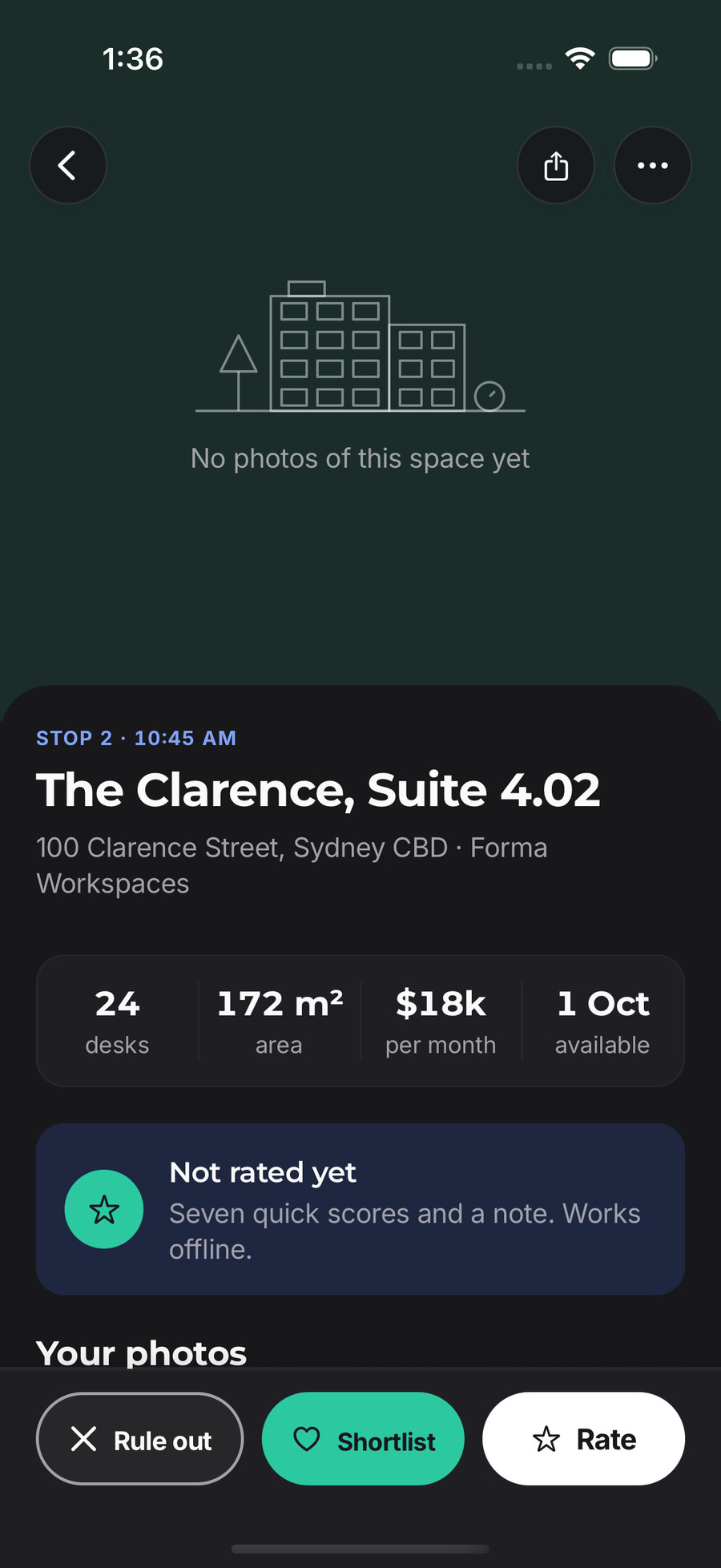
Shortlist or rule out
Keep the contenders. Ruling a space out asks for a reason, so everyone knows why.
05
Compare side by side
Line up the shortlist score by score, with the notes that go with each space.
06
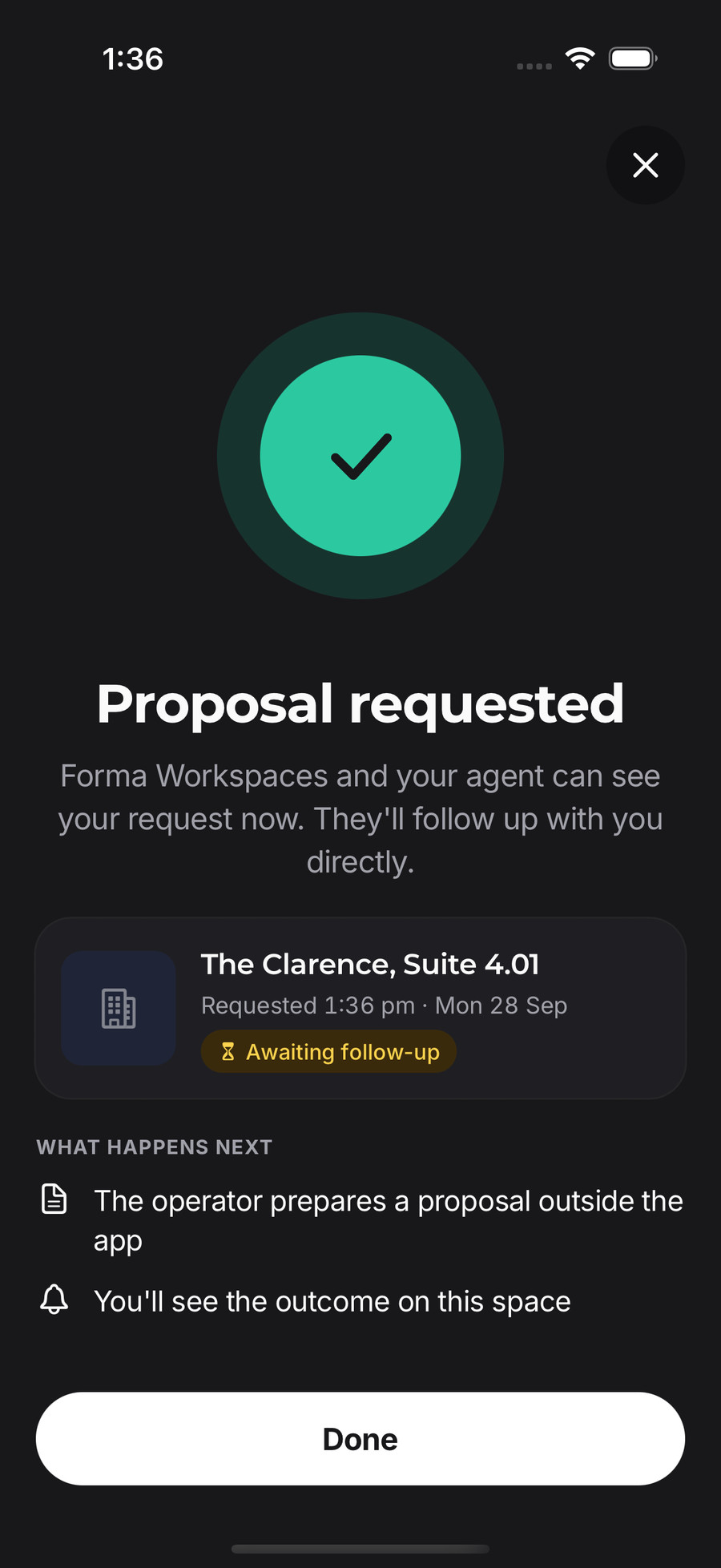
Request a proposal
Ask for a proposal on the space you want. The request is recorded for the operator and your
agent to follow up; the proposal itself is prepared outside the app.
01
Screens from the TIA iPhone app, which is in testing. They show sample data.
Seven scores. Two points of view.
Tenants and agents rate every space on the same seven measures, so opinions line up instead of
getting lost in notes. Agent scores and notes stay on the agent side: tenants and landlords never see
them.
Example scorecard
Level 12, Suite 2
4.14.1tenant average
TenantAgent
Tenant and agent scores out of 5
Measure
Tenant
Agent
Overall fit
4
4
Size
4
5
Location
5
5
Layout
4
4
Natural light
5
4
Price
3
3
Amenity
4
4
An example of one space's scores. Each measure is scored from 1 to 5.
Every space, as it really is.
Add gallery photos to each space and on-site photos at each stop. Photos stay private to the
workspace, and each one is shown only to the people allowed to see it.
What's next, at a glance.
Today opens on the run in progress: where it's up to, the next stop and its time, and the map
one tap away. Repeat visits come to the landlord or operator to approve.
Follow the run in progress and see what's up next.
Open the run map for directions between stops.
Approve or decline repeat visits inside the approval window, with a reason.
Run in progress
Next stop 10:45 am
Everyone sees their part.
Access is by invitation, and every request is checked on the server against the person's role in
the workspace.
Operators
Manage the inventory, runs, approvals and follow-ups across the workspace.
Agents
Plan and lead inspections, score alongside the tenant, and keep agent notes and photos on the agent side.
Landlords
See the inspection stops at their own spaces, and approve or decline repeat visits with a reason.
Tenants
Score, shortlist, compare and ask for a proposal on the spaces in their own run.